Step 2: Add comparison views
We will now add a comparison stage to the two monitor layout. This stage will contain four CC layouts and four MLO layouts.
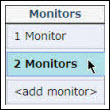
- In the Monitors list, select 2 Monitors.
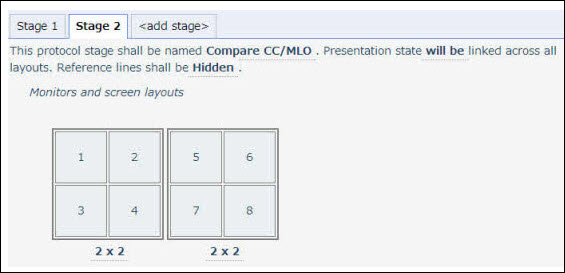
- Clone the first stage. Change the name of the new stage to Compare CC/MLO.
- Change the 1x2 layout to a 2x2 layout.
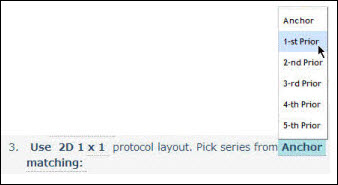
- We want the third layout to pick from the first prior. Select Anchor and select 1-st prior.
- We also want the third layout to use the Right Mammo CC rules template.

- Repeat these steps for the fourth layout, selecting 1-st prior and the Left Mammo CC rules template.

- Add four MLO layouts: left/right “from anchor” layouts and left/right “from 1-st prior” layouts. You can create these layouts by cloning the four CC layouts and changing the rules templates to the Right Mammo MLO and Left Mammo MLO templates.
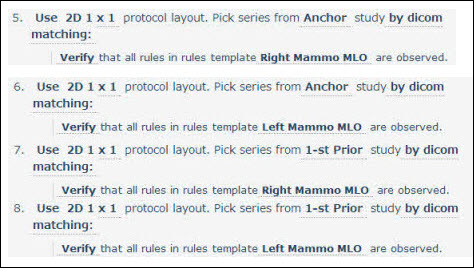
- The two monitor layout should now correspond to the following diagram:
Anchor
1
R-CC
Anchor
2
L-CC
Anchor
5
R-MLO
Anchor
6
L-MLO
Prior
3
R-CC
Prior
4
L-CC
Prior
7
R-MLO
Prior
8
L-MLO
2 x 2
2 x 2
Note
You can use the same process to create layouts for other devices or multi-monitor configurations.